
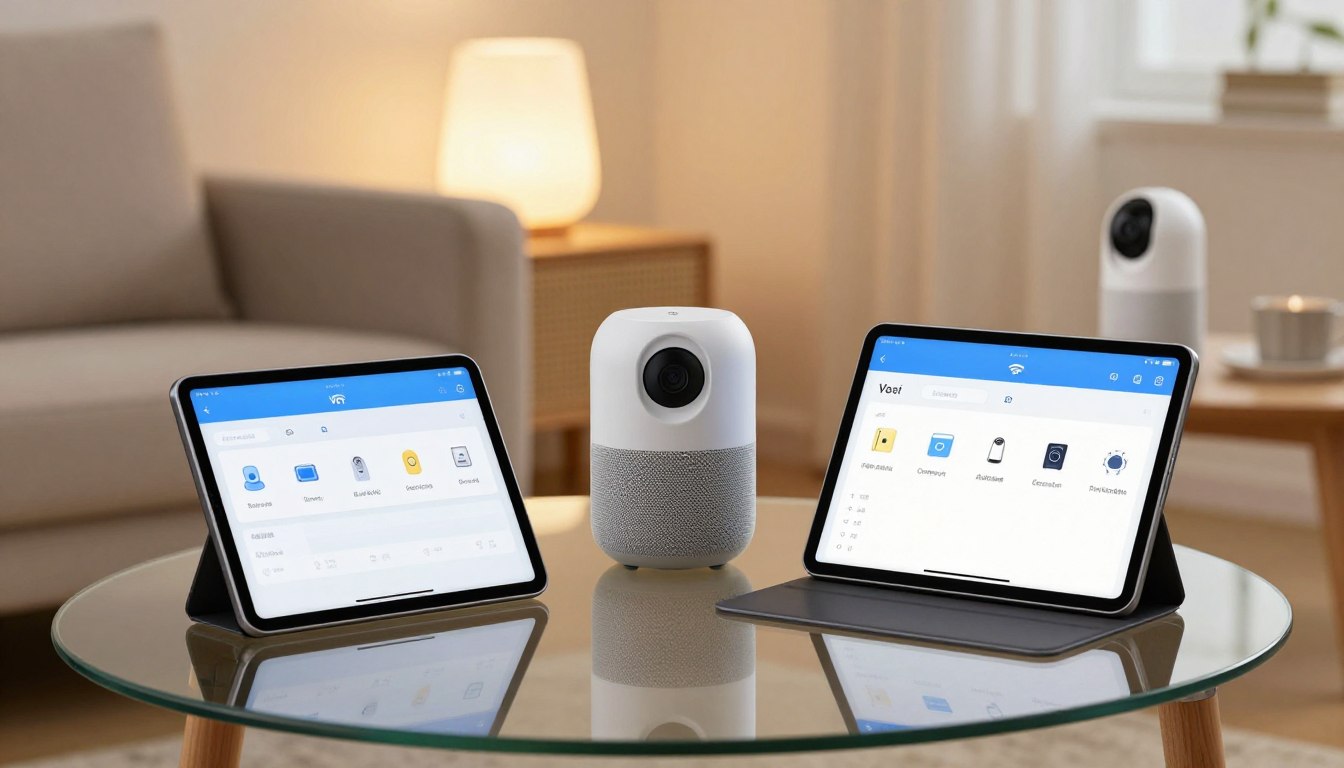

Did you know that millions of smart devices are connected to the internet every day, making them potential targets for cyber threats? As you unwrap your latest smart gadget this holiday season, it’s crucial to connect it to your Wi-Fi network safely to protect your personal data.
Connecting your smart device to Wi-Fi is the first step to unlocking its full potential. However, this process can expose your device and data to potential risks if not done correctly. In this article, we’ll walk you through the steps to securely connect your device to Wi-Fi, ensuring a safe and enjoyable user experience.
Key Takeaways
- Understand the basics of smart device connectivity.
- Learn how to prepare your home Wi-Fi network for a secure connection.
- Discover the steps to connect your device to Wi-Fi safely.
- Find out how to keep your personal data protected.
- Explore tips for maintaining your device’s security over time.
Understanding Smart Device Connectivity Basics
The first step in enjoying your new smart device is understanding its connectivity basics, including the types of devices and their specific requirements. As you explore the world of smart devices, you’ll encounter a variety of products, from smart speakers and home hubs to security cameras and thermostats. Each of these devices has its own connectivity needs.
Types of Smart Devices and Their Connectivity Requirements
Smart devices vary widely in their connectivity requirements. Some devices, like smart bulbs, require a constant connection to the internet to function properly, while others, like smart thermostats, may only need occasional connectivity to update their schedules or receive commands. Understanding these requirements is key to setting up your devices correctly. For instance, devices like Amazon Echo or Google Nest require a stable internet connection to process voice commands and stream content.
Why Secure Connections Matter for Smart Devices
Secure connections are vital for protecting your smart devices from unauthorized access and data breaches. When you connect your device to your Wi-Fi network, you’re potentially exposing your network to risks if the device isn’t properly secured. Using secure protocols like WPA3 and ensuring your devices have the latest firmware updates are crucial steps in safeguarding your network. By prioritizing secure connections, you can enjoy the convenience of your smart devices while minimizing the risk of cyber threats.
Preparing Your Home Network Before Adding New Devices
To ensure a smooth and secure connection for your new smart device, you need to prepare your home network first. This involves a few crucial steps that will help you avoid potential issues down the line.
Checking Your Router Settings and Firmware
Start by checking your router settings and firmware. Ensure your router’s firmware is up-to-date, as updates often include security patches and performance improvements. You can usually check for updates in your router’s settings menu, typically accessed by typing its IP address into a web browser. Updating your router’s firmware can significantly enhance your network’s security and performance.
To update, log in to your router using its admin credentials, navigate to the firmware update section, and follow the prompts. If you’re unsure about the process, consult your router’s manual or manufacturer’s website for guidance.
Understanding Your Network Bandwidth Limitations
Understanding your network bandwidth limitations is crucial. Bandwidth determines how much data can be transmitted over your network at any given time. If you have too many devices connected, it can lead to congestion and slow down your internet speed. Check your internet plan to see what bandwidth you’re subscribed to, and consider upgrading if you have many devices.
Creating a Device Connection Inventory
Creating a device connection inventory helps you keep track of all devices connected to your network. Make a list of devices, including their types and the networks they’re connected to (2.4GHz or 5GHz). This will help you manage your network more effectively and identify any potential security risks. Regularly reviewing your device inventory can help you spot unauthorized devices.
You can usually find a list of connected devices in your router’s settings. Take note of any devices you don’t recognize and investigate further to ensure your network remains secure.
Essential Steps to Secure New Devices on WiFi
With your new smart device in hand, the next step is to secure it on your Wi-Fi network to prevent unauthorized access. Securing your device is paramount to protecting your data and preventing potential breaches. By following a few essential steps, you can significantly enhance the security of your device and Wi-Fi network.
Changing Default Passwords and Usernames
One of the simplest yet most effective ways to secure your new device is by changing its default passwords and usernames. Many devices come with default login credentials that are easily accessible online, making them vulnerable to hacking. To change these defaults:
- Access your device’s settings or configuration page.
- Look for the section on changing passwords or usernames.
- Choose strong, unique passwords that are not easily guessable.
By doing so, you’re adding a crucial layer of security to your device.
Enabling Two-Factor Authentication When Available
Two-factor authentication (2FA) is a security feature that requires not just a password but also a second form of verification, such as a code sent to your phone or a biometric scan. Enabling 2FA when available significantly boosts your device’s security. To enable 2FA:
- Check if your device or its apps support 2FA.
- Follow the device or app’s instructions to set up 2FA.
This additional step makes it much harder for unauthorized users to access your device.
Updating Device Firmware Before Full Setup
Before you start using your new device fully, it’s crucial to update its firmware. Firmware updates often include patches for security vulnerabilities that have been discovered since the device was manufactured. To update your device’s firmware:
- Connect your device to the internet.
- Check for any available firmware updates in the device’s settings.
- Follow the prompts to download and install the update.
Updating your device’s firmware ensures you have the latest security fixes, making your device more secure from the start.
By following these essential steps, you can ensure your new device is securely connected to your Wi-Fi network, protecting your data and maintaining your privacy.
Step-by-Step Guide to Connecting Smart Devices
Now that your home network is secure, let’s connect your new smart device to Wi-Fi. This process involves several straightforward steps that ensure your device is connected safely and functions properly.
Powering Up Your Device Correctly
First, power up your smart device according to the manufacturer’s instructions. Make sure you’re using the correct charger and power source. Some devices may have specific power-on sequences, so it’s worth checking your user manual.
Ensure your device is fully charged or connected to a power source before proceeding. This step is crucial as it prevents any interruptions during the setup process.
Finding and Selecting Your Network
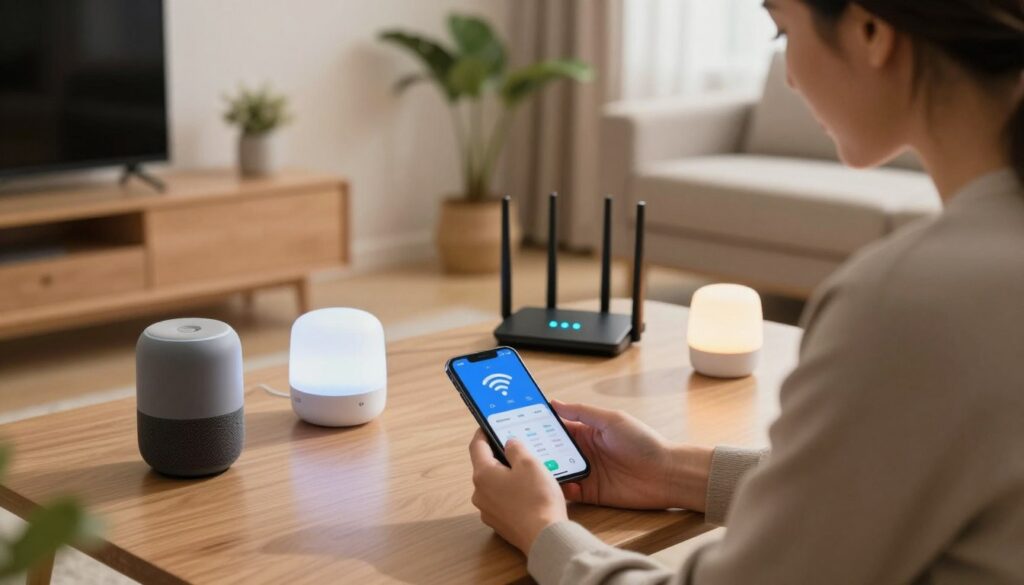
Once your device is powered on, it will search for available Wi-Fi networks. Select your network name from the list of available options. If you can’t see your network, ensure your router is turned on and broadcasting its SSID.
If you’re using a dual-band router, you might see two network names. Choose the one that best suits your needs (typically the 5GHz band for devices that support it, as it usually offers faster speeds).
Entering Network Credentials Safely
After selecting your network, you’ll be prompted to enter your Wi-Fi password. Type it in carefully, as passwords are case-sensitive. If you’re unsure, refer to the password you noted down when securing your network.
For added security, consider using a password manager to generate and store complex passwords. This step is crucial in preventing unauthorized access to your network.
Confirming Successful Connection
After entering your network credentials, your device should connect to Wi-Fi. Confirm the connection by checking your device’s network settings or looking for a confirmation message on the device or its app.
Test your connection by performing a simple task, like streaming music or accessing an online service. If everything works as expected, you’ve successfully connected your smart device to your Wi-Fi network.
Setting Up Popular Smart Devices Securely
Setting up your new smart device securely is the first step in creating a safe and connected home. Different smart devices have unique setup requirements, and understanding these differences is crucial for secure setup. In this section, we’ll explore the setup process for popular smart devices, including smart speakers, smart home hubs, and security cameras.
Smart Speakers and Voice Assistants
Smart speakers like Amazon Echo and Google Nest offer convenient voice control over your smart home devices. To set them up securely:
- Change the default device password and username
- Enable two-factor authentication when available
- Be cautious with the skills or actions you enable on your device
Secure setup is key to preventing unauthorized access to your smart home.
Smart Home Hubs and Controllers
Smart home hubs like Samsung SmartThings and Apple HomeKit act as central controllers for your various smart devices. When setting up your hub:
- Ensure you’re using the latest firmware
- Create a strong password for your hub’s app
- Carefully manage which devices are allowed to connect to your hub
By taking these steps, you’ll be able to effectively manage your smart home ecosystem securely.
Security Cameras and Monitoring Devices
Security cameras like Ring and Nest Cam provide an additional layer of home security. To set them up securely:
- Change default passwords and usernames for camera access
- Use a secure connection (HTTPS) for camera feeds
- Be mindful of camera placement to avoid capturing sensitive areas
By following these guidelines, you can enjoy the benefits of your security cameras while maintaining the security of your home and data.
Troubleshooting Common Connection Issues
You’ve unboxed your new smart device, but it’s not connecting to Wi-Fi – don’t worry, we’ve got you covered. Despite your best efforts, connection issues can arise, but understanding how to troubleshoot them can save you time and frustration.
Device Won’t Connect to Network
If your device won’t connect to the network, start by checking your Wi-Fi password. Ensure you’re entering it correctly, as typos are common. If the issue persists, try restarting your router and device. Sometimes, a simple reboot can resolve connectivity problems.
Common causes include:
- Incorrect Wi-Fi password
- Router firmware issues
- Device compatibility problems
Connection Drops Frequently
Frequent connection drops can be due to interference from other devices or physical barriers between your device and the router. Try moving your router to a central location or switching it to a different channel to minimize interference.
| Cause | Solution |
|---|---|
| Interference from other devices | Change router channel |
| Physical barriers | Move router to central location |
Slow Performance After Connection
If your device is connected but performing slowly, check your network bandwidth. Multiple devices connected to the same network can cause congestion, leading to slow speeds. Consider upgrading your internet plan or limiting the number of devices on your network.
By following these troubleshooting steps, you can resolve common connection issues and enjoy a seamless smart device experience.
Privacy Considerations for Smart Home Devices
As you integrate more smart devices into your home, it’s crucial to consider the privacy implications of these technologies. Smart home devices, ranging from voice assistants to security cameras, collect and process vast amounts of personal data. Understanding how this data is handled is key to maintaining your privacy.
Understanding Data Collection Practices
Smart devices collect various types of data, including usage patterns, voice commands, and even video footage. It’s essential to understand what data your devices collect and how it’s stored. Most devices come with a privacy policy that outlines data collection practices. Take the time to read these policies to know what you’re agreeing to.
For instance, smart speakers like Amazon Echo and Google Nest collect voice recordings to improve their voice recognition capabilities. While this data is used to enhance user experience, it also raises privacy concerns. You can manage these recordings by regularly reviewing and deleting them through the device’s associated app.
Managing Voice Recordings and Activity History
Managing voice recordings and activity history is crucial for maintaining privacy. Many smart devices, especially those with voice assistants, store your interactions. You can usually manage these recordings through the device’s app. For example, you can periodically review and delete voice recordings to minimize stored data.
Additionally, some devices allow you to set privacy preferences, such as disabling the storage of certain types of data. Familiarize yourself with these settings to control what data is retained.
Limiting Third-Party Access to Your Devices
Many smart home devices integrate with third-party services to expand their functionality. While convenient, this integration can pose privacy risks. When granting access to third-party services, review the permissions carefully. Limit the data shared with these services to only what’s necessary for their function.
Regularly review the list of connected third-party apps and revoke access for any that are no longer in use. This practice helps minimize potential privacy vulnerabilities.
Creating a Secure Smart Home Ecosystem
To keep your smart home safe, you need to be proactive about security measures. A secure smart home ecosystem isn’t just about connecting devices; it’s about maintaining that security over time.
Setting Up Regular Security Audits
Regular security audits help you identify vulnerabilities before they become issues. You should check which devices are connected, ensure they’re updated, and review their permissions. Schedule these audits monthly to stay on top of your smart home’s security.
| Device | Last Update | Permissions |
|---|---|---|
| Smart Thermostat | Last week | Temperature control |
| Security Camera | Last month | Video recording, motion alerts |
Managing Automatic Updates
Automatic updates are crucial for keeping your devices secure. They ensure that your devices have the latest security patches without requiring manual intervention. Make sure to enable automatic updates for all your smart devices.
“Automatic software updates are a critical component of a secure smart home ecosystem.”
When to Retire Outdated Devices
Outdated devices can pose a significant risk to your smart home’s security. If a device is no longer receiving updates or is incompatible with newer security protocols, it’s time to retire it. Check manufacturer support for your devices to determine if they’re still supported.
Conclusion
Now that you’ve connected your new smart device to Wi-Fi safely, it’s essential to maintain a secure smart home ecosystem. By following the steps outlined in this article, you’ve taken significant strides in securing your device and protecting your data when you secure new devices on wifi.
To keep your smart home secure, regularly review your network settings and update your router’s firmware. Be mindful of the devices connected to your network and monitor their activity. By being proactive about smart home security, you can enjoy the benefits of a connected home without compromising your safety.
Stay vigilant and continue to educate yourself on the latest best practices to ensure your smart home remains a safe and enjoyable space. By doing so, you’ll be able to take full advantage of your smart devices while keeping your data and network secure.